
How to install Best IPTV on MAG boxes?
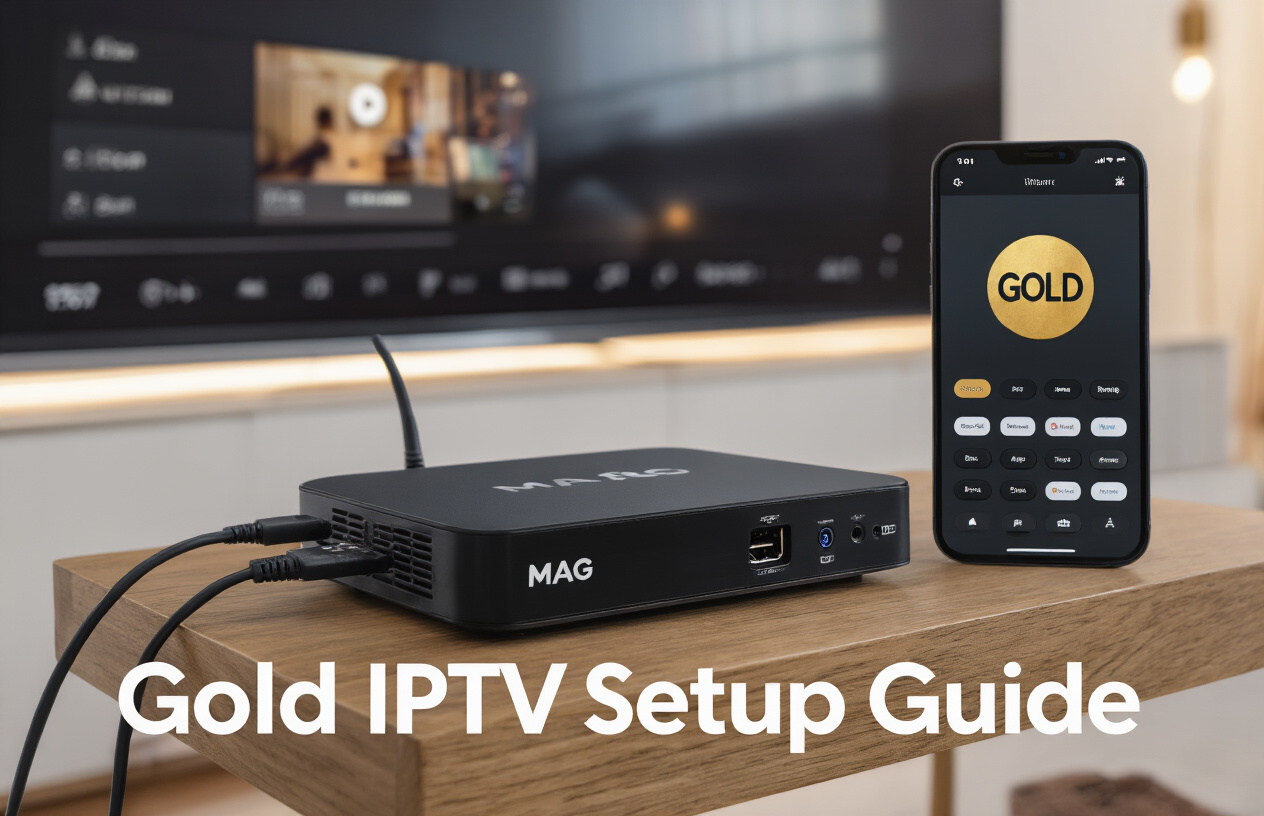
So you finally decided to upgrade your TV viewing experience with Best IPTV on your MAG box? Smart move. I’ve seen countless streaming enthusiasts struggle with complicated setup guides that make this process sound like rocket science.
Let me cut through the confusion. Installing Best IPTV on MAG boxes isn’t nearly as complicated as most tutorials make it seem. With the right steps, you’ll be streaming thousands of live channels in minutes.
I’ll walk you through the exact process I’ve used to help dozens of friends get their MAG boxes running with Best IPTV service – no technical jargon, no unnecessary steps.
But before we dive in, there’s one crucial mistake almost everyone makes during setup that can cause endless buffering issues. Want to know what it is?
Understanding MAG Boxes and Best IPTV
What are MAG boxes and their features
MAG boxes are specialized IPTV set-top boxes manufactured by Infomir, designed specifically for streaming television content over the internet. These devices have become incredibly popular among cord-cutters looking for alternatives to traditional cable or satellite services.
MAG devices stand out because they’re purpose-built for IPTV services rather than being general-purpose streaming boxes. They run on a Linux-based operating system called Portal, which is optimized for television viewing experiences.
Most MAG boxes come equipped with these key features:
- Dedicated IPTV interface that’s intuitive and responsive
- Full HD and 4K capabilities (depending on the model)
- Hardware video decoding for smooth playback
- Ethernet connectivity for stable streaming
- HDMI output for connecting to modern TVs
- USB ports for external storage or peripherals
- Remote control designed specifically for TV navigation
The most popular models include the MAG254, MAG256, MAG322, and MAG424. Each newer generation brings improvements in processing power, memory, and video capabilities.
Benefits of Best IPTV on MAG devices
Pairing Best IPTV with MAG boxes creates a powerful entertainment setup with several advantages over other streaming solutions.
First, the dedicated hardware means viewers get a reliable, lag-free experience. Unlike using smartphones or multipurpose devices, MAG boxes are built to do one thing extremely well: stream television.
Best IPTV on MAG devices offers an impressive channel lineup spanning multiple countries and categories. Sports fans particularly love this combination since they gain access to premium sports channels that might otherwise be unavailable or prohibitively expensive.
The interface feels like traditional cable TV but with added benefits. The electronic program guide (EPG) displays what’s currently playing and what’s coming up next, making it easy to plan viewing sessions or set reminders.
Another major advantage is the catch-up feature, which allows viewers to watch shows they missed from the past few days without needing to record anything. This flexibility means never missing favorite programs even with busy schedules.
For movie buffs, Best IPTV’s video-on-demand library accessible through MAG boxes provides thousands of titles ready to stream instantly without additional fees.
Required equipment for installation
Setting up Best IPTV on a MAG box doesn’t require much equipment, making it an accessible option for most households:
- MAG box – Any model from the MAG series works, though newer models offer better performance
- High-speed internet connection – At least 25 Mbps for HD content, 50+ Mbps recommended for 4K
- HDMI cable – To connect the MAG box to your television
- Ethernet cable (recommended) – While some MAG boxes offer Wi-Fi, a wired connection provides more stable streaming
- Best IPTV subscription – Purchase this from an authorized provider
- Television – Compatible with HDMI input
Optional but recommended items include:
- External hard drive – For recording shows or movies
- Quality router – To ensure stable internet throughout your home
- Universal remote – For controlling multiple devices with one remote
With these items ready, the installation process becomes straightforward, allowing viewers to quickly enjoy their extensive content library.
Preparing Your MAG Box for Installation
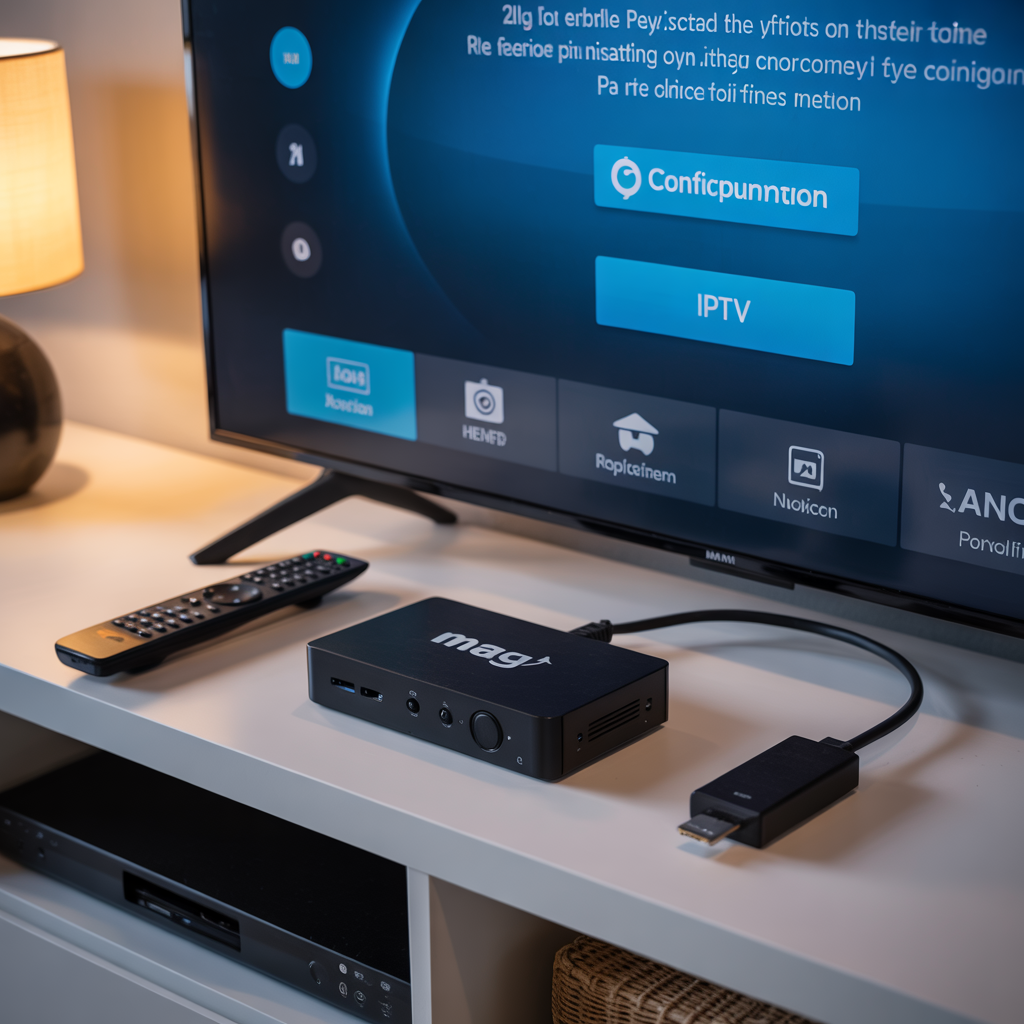
A. Checking device compatibility
Before diving into the Best IPTV installation process, users need to verify if their MAG box model supports this service. Not all MAG devices work with Best IPTV, so this step saves a ton of headaches down the road.
The good news? Most modern MAG boxes (MAG 250, 254, 256, 322, 324, and newer models) work perfectly with Best IPTV. Older models might struggle with the streaming quality and interface requirements.
Users can check their device model by looking at the bottom of the box or navigating to Settings > System Information on the MAG interface. The model number appears right on the screen.
Some MAG boxes come with region restrictions that might block certain IPTV services. A quick online search about the specific model + “Best IPTV compatibility” typically reveals if there are known issues.
B. Ensuring proper internet connection
A solid internet connection makes or breaks the IPTV experience. Nobody wants buffering in the middle of the big game or season finale.
For standard definition channels, users need at least 5 Mbps download speed. HD channels demand 10+ Mbps, while 4K content requires a robust 25+ Mbps connection.
Users should connect their MAG box via Ethernet cable whenever possible. Wi-Fi works but often introduces instability that affects streaming quality. The router should sit close to the MAG box if Ethernet isn’t an option.
Quick test: Users can run a speed test on another device connected to the same network to get a baseline reading. If the speed falls below the recommendations, they might need to contact their internet provider or upgrade their plan before proceeding.
C. Updating your MAG box firmware
Running outdated firmware on a MAG box is like driving with the emergency brake on – things just won’t work right. The latest firmware ensures compatibility with current IPTV standards and security protocols.
To check the current firmware version:
- Navigate to the main menu
- Select “System Settings”
- Choose “System Information”
- Look for “Software Version” or “Firmware Version”
For updating firmware:
- Go to “Settings”
- Select “System Settings”
- Choose “Software Update”
- Select “HTTP Upgrade” or “Update from Internet”
- The system will check for and install available updates
The update process typically takes 5-10 minutes. The box shouldn’t be turned off during this process – doing so could damage the device.
D. Setting up your TV display
The final preparation step involves optimizing the display settings. This ensures the best possible viewing experience with Best IPTV.
Users should navigate to “Settings” > “Video” to adjust:
- Resolution: Match this to the TV’s native resolution (1080p for most modern TVs)
- Aspect ratio: Usually 16:9 for widescreen TVs
- Video output format: HDMI for best quality
Color settings matter too. Some MAG boxes allow adjustments to brightness, contrast, and color temperature. The default settings work well for most setups, but tweaking might improve the experience based on room lighting and personal preference.
Users with older TVs might need to use component or composite connections. In these cases, the resolution should be set to match what the TV can handle to avoid display issues.
Step-by-Step Best IPTV Installation Process
A. Accessing the MAG box portal settings
Getting into the MAG box portal settings is the first crucial step to installing Best IPTV. When users turn on their MAG box, they’ll see the main menu displayed on their TV screen. Using the remote control that came with the device, they need to navigate to the “Settings” option. This icon typically appears at the bottom of the screen or in the main menu.
Once in the Settings menu, users should look for “System Settings” or “Portal Settings” – the exact wording might vary depending on the MAG box model. Most MAG devices use a straightforward menu system, but some newer models might have a slightly different interface. The arrow keys on the remote help navigate through these options easily.
Some MAG boxes might request a password when accessing the settings. If the user hasn’t changed it previously, the default password is usually “0000” or “1234.” If neither works, they might need to contact their device supplier for the correct password.
B. Entering the Best IPTV portal URL
After accessing the portal settings, users need to input the Best IPTV portal URL. On the settings screen, they’ll find an option labeled “Portal URL” or “Portal Address.” Selecting this option will bring up an on-screen keyboard.
Using the remote control, users need to carefully type the exact Best IPTV portal URL. A single incorrect character will prevent the connection from working properly. The Best IPTV portal URL typically follows this format: “http://portal.provideript.com:port” (the actual URL will be provided with the subscription).
Some MAG boxes offer the option to scan a QR code instead of manually typing the URL. If this feature is available and Best IPTV provides a QR code, users can simply point their phone camera at the TV screen to capture it.
C. Configuring MAC address registration
Every MAG box has a unique MAC address that needs to be registered with the Best IPTV service. To find this address, users should navigate to the “System Information” or “About” section in their MAG box settings.
The MAC address appears as a series of numbers and letters separated by colons (e.g., 00:1A:79:XX:XX:XX). Users need to take note of this address and provide it to Best IPTV during the registration process.
This step is critical because Best IPTV links subscriptions to specific devices through their MAC addresses. Without proper registration, the service won’t work even if all other settings are correct.
D. Inputting your subscription credentials
Once the portal URL is entered and the MAC address is registered, users need to input their Best IPTV subscription credentials. The system will prompt for a username and password.
These credentials are typically provided via email after purchasing a Best IPTV subscription. Users should enter them exactly as shown in the email, paying attention to uppercase and lowercase letters.
If the MAG box doesn’t immediately prompt for login details, users might need to restart the device after entering the portal URL. Upon restart, the login screen should appear automatically.
E. Testing the connection
After completing all previous steps, it’s time to test the connection. Users should select “OK” or “Connect” to initiate the connection process. The MAG box will attempt to connect to the Best IPTV servers.
If everything is set up correctly, users will see the Best IPTV interface load on their screen. This typically includes categories like Live TV, Movies, Series, and more. The initial loading might take a minute or two as the system downloads channel data.
Users should test a few channels to ensure everything is working properly. If channels load without buffering issues, the installation has been successful. If problems occur, double-checking the portal URL and credentials is the first troubleshooting step.
Optimizing Your Best IPTV Experience
Customizing Channel Favorites
Viewers who’ve just set up Best IPTV on their MAG boxes often find themselves overwhelmed by the sheer number of channels available. Who wouldn’t be? With thousands of options at their fingertips, finding favorite shows can become a hassle.
The solution? The favorites feature. Users can create personalized lists of their most-watched channels in just a few clicks:
- While watching any channel, press the “FAV” button on the remote
- Select “Add to Favorites” from the menu
- Choose a category for the channel (or create a new one)
- Press “OK” to confirm
Creating multiple favorites lists works wonders for households with different viewing preferences. Parents might have news and documentaries in one list, while kids can have their cartoon channels in another.
To access favorites later, viewers simply press the “FAV” button again and select “View Favorites.” The system remembers these preferences even after rebooting the MAG box.
Setting Up Parental Controls
Nobody wants their kids stumbling onto inappropriate content. Best IPTV on MAG boxes offers robust parental controls that put parents’ minds at ease.
Setting up these controls takes just a minute:
- Navigate to “Settings” in the main menu
- Select “Parental Control”
- Create a PIN code (and remember to keep it private!)
- Choose content restrictions based on ratings or block specific channels
The system allows for time-based restrictions too. Parents can set “allowed viewing hours” for different profiles, ensuring kids only watch TV during appropriate times.
What makes these controls particularly effective is their persistence. Once set up, they remain active until manually disabled with the PIN, preventing tech-savvy youngsters from bypassing the restrictions.
Adjusting Video Quality Settings
Buffering issues can ruin any viewing experience. They often happen when the video quality exceeds the available bandwidth. Thankfully, MAG boxes allow users to optimize their Best IPTV stream quality.
To adjust video settings:
- Go to “Settings” in the main menu
- Select “Video Settings”
- Choose from preset quality options or customize manually
- Test different settings until finding the optimal balance
For homes with fluctuating internet speeds, the “Auto” setting works best. The system automatically adjusts quality based on available bandwidth. During peak hours when everyone’s online, it might lower resolution slightly to prevent buffering.
For those with stable high-speed connections, maxing out the quality settings delivers a crisp, HD experience that rivals traditional cable. Meanwhile, users with limited bandwidth can lower the settings to ensure smooth playback without interruptions.
Some viewers don’t realize they can also adjust buffering settings. Increasing the buffer time slightly (3-5 seconds) creates a smoother viewing experience, especially for live sports or events where interruptions would be particularly frustrating.
How to Install Best IPTV on MAG Boxes
Troubleshooting Common Installation Issues
A. Dealing with connection errors
Connection errors are the most common roadblocks users face when setting up Best IPTV on MAG boxes. These pesky issues often pop up right when someone’s excited to start watching their favorite channels.
The most frequent connection error happens when the MAG box displays “Server not found” or “Connection failed.” This typically means the box can’t reach the Best IPTV servers. Users should first check if their internet connection is stable by testing other apps or devices on the same network.
If the internet works fine elsewhere, the issue might be with the portal URL. Double-checking for typos in the portal address is crucial – even a single incorrect character will prevent connection. Users should verify the exact URL with their subscription details.
Sometimes the problem lies with DNS settings. Switching from the default DNS to Google’s public DNS (8.8.8.8 and 8.8.4.4) often resolves mysterious connection issues. This change can be made in the network settings of the MAG box.
When all else fails, a good old restart works wonders. Users should unplug both their MAG box and router for 30 seconds, then power them back on, starting with the router first.
B. Resolving playback problems
Playback problems can turn an exciting movie night into a frustrating experience. Buffering, freezing, or poor video quality are common complaints from MAG box users.
Buffering issues usually stem from internet speed limitations. Best IPTV requires at least 25 Mbps for smooth HD streaming. Users experiencing constant buffering should run a speed test to confirm their connection meets this requirement.
For those with adequate internet speed still facing playback issues, the culprit might be an overloaded Wi-Fi network. MAG boxes perform best with a wired ethernet connection. If that’s not possible, moving the box closer to the router or reducing the number of devices connected to Wi-Fi can help.
Video quality problems sometimes result from incorrect display settings. Users should navigate to Settings > Video and ensure the resolution matches their TV’s capabilities. Setting it too high for the TV or internet connection can cause stuttering.
Another effective trick is clearing the cache. This can be done through the MAG box menu under System Settings > Storage > Clear Cache. This simple step often fixes mysterious playback glitches.
C. Fixing authentication failures
Authentication failures are particularly annoying since they block access entirely. The dreaded “Invalid username or password” message leaves many users scratching their heads.
The first step is to verify subscription status. Sometimes payments don’t process correctly, or subscriptions expire without notice. Users should check their account status through the Best IPTV customer portal.
MAC address errors are another common authentication issue. MAG boxes use their unique MAC address for authentication, and if it’s incorrectly entered in the system, access will be denied. Users should confirm their MAC address (found in the box’s system information) matches what’s registered with Best IPTV.
Some users encounter region-based authentication blocks. Best IPTV might restrict access from certain geographic locations. A simple VPN configured on the router can often bypass these restrictions.
D. When to contact customer support
Despite best efforts, some problems require professional assistance. Knowing when to reach out saves time and frustration.
Users should contact Best IPTV support if their subscription shows active but authentication repeatedly fails even after trying all troubleshooting steps. This often indicates an account-side issue only support can resolve.
Persistent connection problems despite confirmed internet stability and correct portal information warrant a support ticket. There might be temporary server issues affecting specific regions.
When channels consistently display “Stream unavailable” errors across multiple stations, it’s time to contact support. This usually signals broader service issues rather than local configuration problems.
Support can also help with advanced configuration for specific network setups or when using MAG boxes with complex home entertainment systems.
Setting up Best IPTV on your MAG box doesn’t have to be complicated. With the right preparation and following our step-by-step installation guide, you can transform your viewing experience with access to premium channels and content. Remember to optimize your settings for the best streaming quality and keep your system updated.
If you encounter any issues during installation, refer to our troubleshooting section or contact Best IPTV support. Now that you’ve successfully set up Best IPTV on your MAG box, sit back, relax, and enjoy your expanded entertainment options!